
Running a pipeline
Once a workflow has steps, this is how it gets started, watched, and unstuck.
Triggers and scheduling
A workflow can be created without running it — it sits in draft/idle until something triggers the first step:
- Manual — the Run button, optionally with a run brief.
- Schedule — the same recurrence control scheduled topics and agents use: either an interval, or a time of day on chosen weekdays. A workflow can hold several rules at once ("every day at 07:00" and "every weekday at noon") and runs at whichever comes first.
- Webhook — mint a token to expose a
POST /api/workflows/hooks/{token}URL that kicks off the run. Any body you post becomes the run's brief.
The run brief: one workflow, a different subject each run
A workflow definition is meant to be generic and reusable ("analyse it → review it → report it"). What changes run to run is the subject. That's the run brief: an optional free-text input you attach when you start a run.
Click the caret next to Run to open the brief composer, describe what this particular run is about, and hit Run with brief (or ⌘↵). Leave it empty and the pipeline runs on its steps' own objectives, exactly as before.
Analyse /data/q3-sales.csv — focus on the EMEA region and
flag anything below target.
The brief leads every step's kickoff preamble, ahead of the upstream hand-off. That matters beyond step one: a gate three stages down can judge the work against what was actually asked for, and a final reporting step knows which file it was ever about — without any step re-forwarding it by hand.
The brief is stored on the run and shows on the run header, so a past run is self-explanatory rather than a mystery result. Scheduled runs carry no brief by design; a webhook may supply one by posting a body.
Watching several pipelines at once
The Workflows gallery is the home page for everything in flight. A card for a workflow that is running, paused or awaiting approval grows a progress bar under its step trail: how far the run has got, which step it is sitting on, and the percentage complete.
The bar reads the run's own trace rather than guessing from the step agents' current statuses — so it measures how far this run advanced, not what those agents happened to finish last time they were used. Repeated attempts collapse into their position, so a gate looping back doesn't rewind the bar or double-count, and a replay — which advances nothing — never moves it. The in-flight step's own progress is blended in, so a stage that takes minutes still shows movement instead of a frozen bar, and the fill takes the run's colour: sky while running, amber paused, violet when it needs you.
Cards refresh as their runs advance, and resting workflows keep just their step trail — so the gallery reads as a dashboard of what is actually moving.
The detail board
The workflow detail board shows the sequence as a horizontal strip of step nodes, each with a live status ring — done, active, failed, or pending — plus a lifecycle bar:
- Run starts (or restarts) the workflow from the first runnable step. On a re-run, each step agent's artifacts are cleared first so the fresh pass isn't polluted by the previous one's output.
- Pause / Resume halt the coordinator between steps and pick back up.
- Cancel stops the run.
While the active step's agent is working, its node shows the first line of what it is writing, or a pulsing Thinking… line with the step it is on while the model thinks.
Clicking a step opens a modal that drills into that agent's run — its timeline, artifacts, and answer — while the workflow stays live in the background. From there you can jump to the full agent in agents mode.
Run history and the step trace
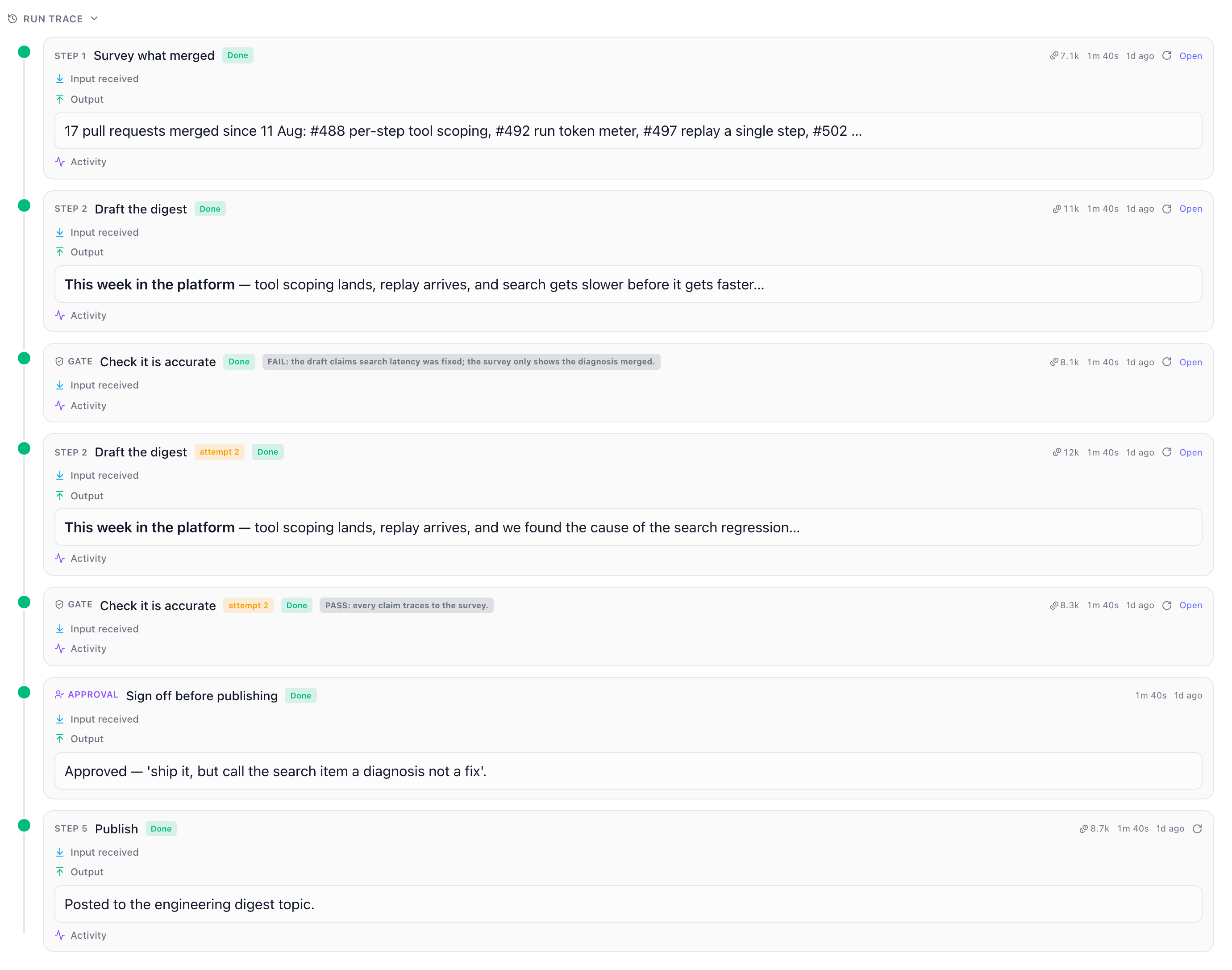
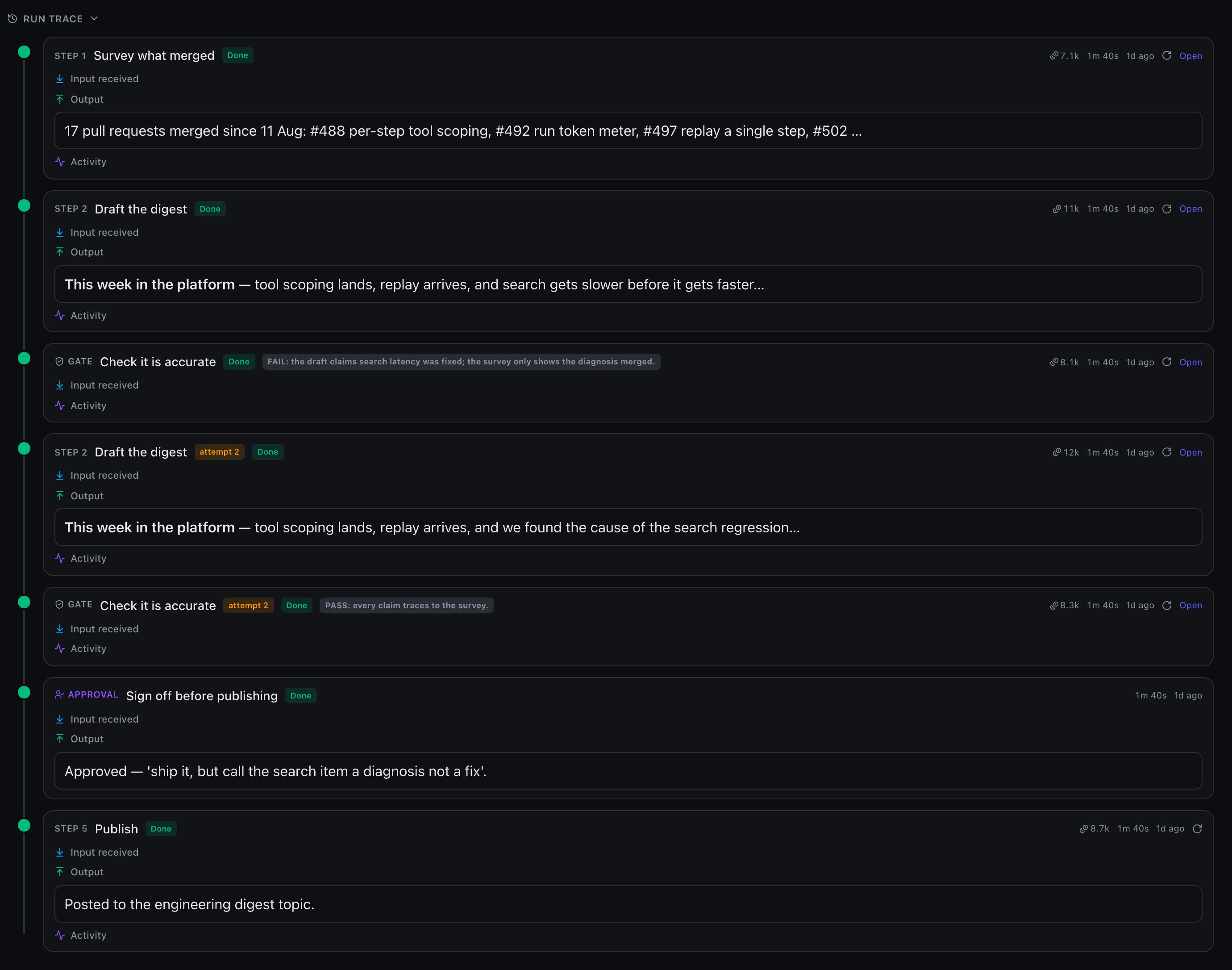
Every execution is recorded as a run. The run header surfaces its status, trigger, current step, elapsed time and percent complete, and a run picker scrolls back through past executions. A collapsible Run trace renders the run as an append-only timeline — one row per step attempt, showing what each step received and produced, plus gate verdicts and per-attempt duration.
Because a gate loop-back re-drives an earlier step, each retry appends a fresh attempt row (badged attempt 2, attempt 3, …) rather than overwriting the previous one — so the trace reads as a faithful record of how the pipeline actually converged.
Each agent-backed row names the agent run it launched (run #123), so you can walk from a pipeline step straight to the execution behind it — useful when the same agent is driven by more than one workflow. Individual runs are deep-linkable: /workflows/<id>/run/latest follows the newest run, while /workflows/<id>/run/<n> pins run n so you can bookmark or share it.
Steps driven by the coordinator don't flag themselves unread in the Agents section — that badge is reserved for genuinely autonomous runs, so a busy workflow doesn't leave a trail of unread agents.
What a step actually did
Every attempt carries an Activity section: the same timeline the Agents cockpit renders — tool calls with their arguments and output, assistant messages with their collapsed Thinking, errors — sliced to that attempt's own window. It's the difference between "the step stalled" and "the step asked to run workiq-do_action and nobody approved it". Activity is fetched on demand, so opening one attempt doesn't load the rest.
Replaying a single step
Every finished, agent-backed row carries a replay icon (⟳). It re-runs that one step on the exact input it first saw and advances nothing: no later step runs, and the run keeps its own outcome.
That's what makes it different from Retry, which exists to get a stopped run moving and carries on through the rest of the pipeline. Replay is for interrogating one step, so it's offered on a step that succeeded too: take a second sample from a non-deterministic model, or check what the step does now you've tightened its instructions — without re-running (and re-paying for) everything around it.
The replay lands in the same trace badged replay, and its spend rolls into the run total. It never becomes "the attempt that failed" for a later retry. Because it drives the step's agent directly it's refused while the run is still in flight — stop the run first.
When a step fails: retry, carry on, or stop
By default any failed step stops the run. Each step carries its own failure policy:
- Stop run (default) — the conservative choice.
- Retry — re-drive the same step up to N times (1–10), with the failure reason injected so the retry isn't a blind repeat.
- Carry on — record the failure and move to the next step. For steps whose output is a nice-to-have: an optional enrichment, a notification.
Retry budgets are per run, so a scheduled pipeline doesn't exhaust its allowance over its lifetime.
A dropped model stream counts as a failure
A step's turn can end without ever finishing — the model's response stream drops mid-sentence, so no completion and no token usage are ever recorded. From the outside that looks exactly like an agent falling quiet after a job well done, and it used to be traced as a completed step with an empty output, quietly advancing the run on nothing.
A turn that ends with no output and no recorded spend is now failed instead, so it goes through the failure policy above like any other — which is what makes a dropped stream retryable, the one thing it most wants to be. Both halves of that test matter: a step that legitimately answers nothing still spends tokens getting there, so a silent-but-paid turn still completes normally.
The stall watchdog
An agent that never returns would otherwise park an unattended pipeline in running forever. Set a stall watchdog on the workflow (in minutes; 0 = off, the default) and any step running longer than that is declared stuck: the coordinator cancels its agent and puts it through the same failure policy above — so a timeout can retry, be skipped, or stop the run like any other failure.
Getting a stopped run moving again
A run stops for two different reasons, and each has its own way forward.
- Blocked — a step's agent raised a question it couldn't answer alone. The run parks and the control turns amber, showing the question with a box to answer it. The answer is injected into the step's kickoff, so the retry has what it was missing.
- Failed — the step that broke wears a Retry this step button. It re-drives that step as a fresh attempt on the same run and carries on from there, so the good steps before it are neither thrown away nor paid for twice. Guidance in the toolbar adds a note for the retry when the agent can't diagnose the failure itself.
Re-driving a step first releases whatever parked it, so the retry starts on an idle session instead of queueing behind the thing it was meant to fix.
Retry is about the run. When you only want another take on one step — including one that succeeded — use replay instead.
Tool approvals for the whole pipeline
A step's agent can stop mid-run to ask permission for a tool call — and until someone answers, the entire run is parked. For a workflow fired by a schedule or a webhook there is nobody there to answer, so it stalls until the watchdog kills it.
Tool approvals in the workflow's settings sets the policy for every step's agent while the pipeline runs — the same Manual / Balanced / Autonomous choice an individual agent has. Like the role it is applied to whichever agent is about to run rather than written onto the agent row, so a shared agent keeps its own policy everywhere else it is used.
A gate you can answer from the board
When a step stops at a permission request, the approve / deny card appears on the workflow board. That matters most for an inline step: its agent is hidden from the Agents section, so the board is the only place its decision can be made.
Waiting on a permission does not pause the run — the turn is still alive and picks up the moment you answer. Only a question the agent genuinely raised parks the pipeline.
Cost: what the run actually spent
Every step attempt records its token spend, and the run rolls them up. The run header shows the total, and each trace row shows its own, so a gate that looped four times reveals what each pass cost. It turns "did it work?" into "was it worth it?", and makes an expensive loop obvious.
Notifications
A pipeline that runs in the background is only useful if it can reach you. A workflow raises a notification when it needs you (parked on a human approval — this one shows even when the app is focused, because the run is blocked until you answer), when it finished, or when it failed.
Step-to-step progress stays silent, and each transition notifies once, so a run that emits many updates doesn't nag.
Archiving
A workflow archives like a topic, chat or agent: Archive hides it from the gallery while keeping its definition and its run history. Restore or permanently delete it from the shared Archive panel. An archived workflow stops counting as a live reference, so it disappears from the "used in workflows" list on the agents it referenced.
Deleting a workflow never deletes the reusable agents it pointed at — only the private vessels belonging to its own inline steps.