
Live meeting assistant
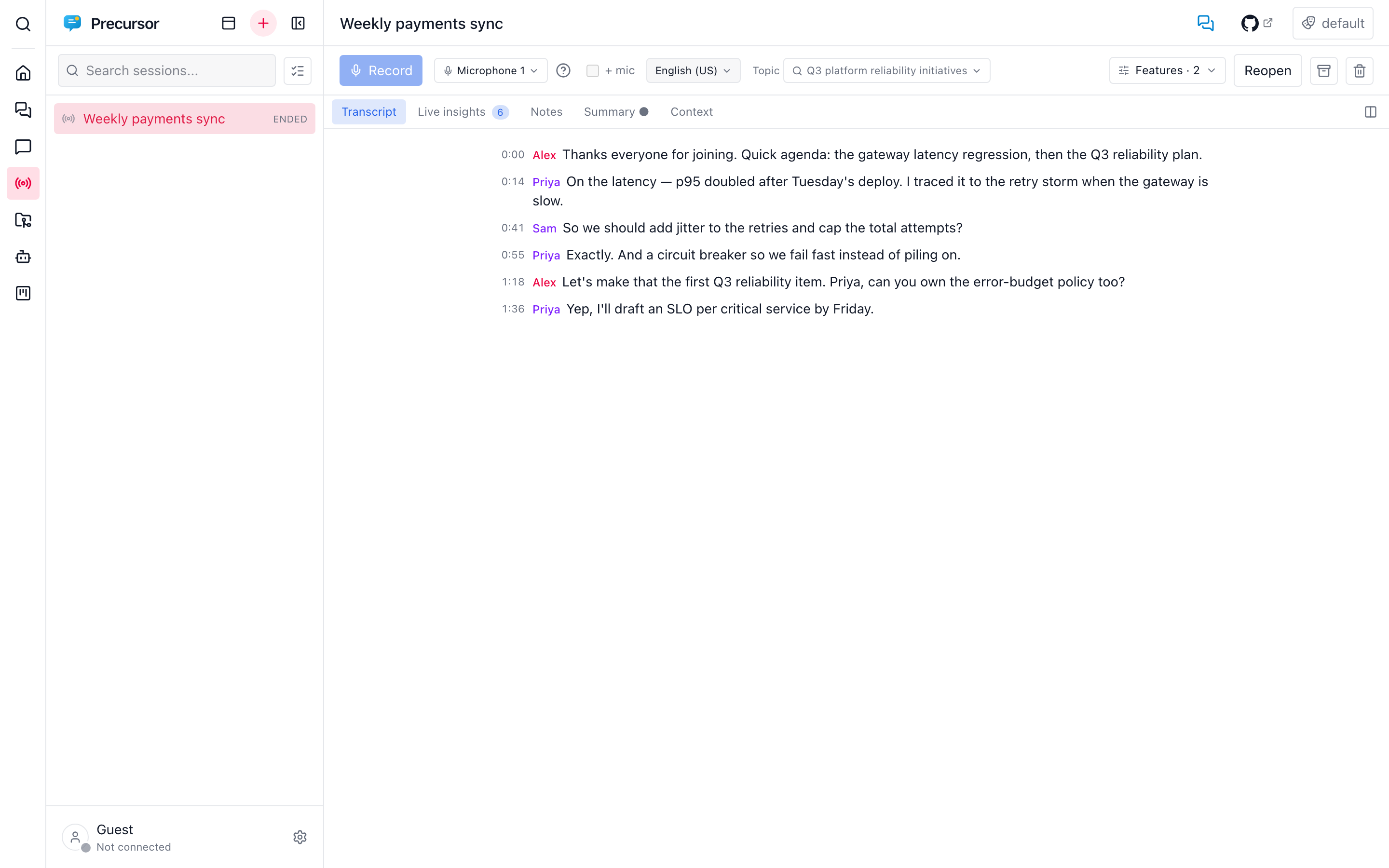
The Live section records an ongoing meeting, transcribes it with speaker labels, and surfaces live insights, Q&A, and an editable summary you can attach to a topic. Audio is transcribed in the browser via Azure Speech and never stored — only the transcript and derived insights are kept.
Prerequisites
Transcription uses Azure AI Speech. Set a Speech key and endpoint under Settings → Speech-to-text. Until then, sessions can be created but the Record button stays disabled.
Capturing meeting audio
A browser can only capture audio it's given access to. For an in-person meeting, selecting your microphone is enough. For a remote meeting in a desktop app (like Teams), you route the app's output through a virtual audio device that then looks like a normal microphone to the browser — while still sending the audio to your speakers so you keep hearing the call.
The How to capture meeting audio dialog (the ? next to the input picker) has step-by-step, OS-specific instructions:
- macOS — BlackHole + a Multi-Output Device.
- Windows — VB-CABLE with Listen to this device enabled.
- Linux — a PipeWire / PulseAudio null sink + loopback.
For hybrid meetings, tick + mic to also capture your local microphone alongside the virtual device — both streams are mixed and transcribed together.
Precursor only opens an input device while you record, so the browser's recording indicator on the tab means a recording is really running. If the browser has never been granted microphone access, the picker lists device names once you open it (it asks for access then) or once you start recording.
Starting and protecting a recording
The record controls — Record, the capture-device picker, + mic, and the meeting language — are pinned at the top of the Transcript tab, so they stay in reach as the transcript grows.
While a recording is live, Precursor guards against losing it by accident. Leaving the screen in-app asks you to confirm first (Keep recording or Leave & stop recording), and reloading or closing the tab triggers the browser's native "leave site?" prompt.
Language
Pick the meeting language when creating the session or from the record controls. Changing it mid-session briefly restarts the recognizer, since Azure can't switch a running recognizer's language in place. Live insights and Q&A answers are produced in the session's language.
Insights, Q&A, and summary
The Live view is a tabbed, splittable panel — Transcript · Live Insights · Summary · Context. Use the Split toggle to view two sections side by side.
Assistant role
The Role picker in the session header sets the persona for every AI feature of the session — insights, suggested answers, Ask assistant, the recap and the topic context brief. Attaching a topic copies that topic's role into the session (replacing the current one); pick another role afterwards to override it. Detaching a topic leaves the role as it is.
- Live Insights — while recording, the assistant re-derives a snapshot of action items, decisions, open questions, suggestions, and risks from the rolling transcript. Each analysis replaces the previous snapshot, and a proactive suggestion shows in a highlighted card that a newer one replaces — nothing stacks up while the meeting runs. Insight categories are separated into scan-friendly groups, and suggestions lead with a concise recommendation followed by short bullets when alternatives or next steps help.
- Ask assistant — ask free-form questions; answers stream from the transcript plus the attached topic.
- Suggested answers — turn on Suggested answers in the feature picker and the assistant drafts a reply as soon as someone else asks a question, so you have something to say to a hard one. See Suggested answers.
- Speaker labels — click a label in the transcript to rename it (
Guest-2→Thomas); the name applies to every past and future phrase from that voice. - Fix mistaken words — double-click any phrase to edit its text in place, handy for correcting a misheard word before it feeds the insights and summary.
- Summary — an editable markdown recap, including an Attendees list (seeded from renamed speakers and any linked meeting's invitees), which you can post into the linked topic as a message. One Generate button opens a small form to pick the source, template and language it's written from. Suggested attendees sit in a compact, scrollable strip, so a large invite list never crowds out the recap. Your edits autosave as you type (and when you end the session or leave it), so a hand-tuned recap survives a reload even if you never post it anywhere.
- Context — an AI summary of the attached topic, and — via the WorkIQ MCP (Microsoft 365) — the ability to link a meeting from your agenda so its invitees flow into the summary's attendees. The agenda spans the last few days through today, so you can attach — or record from — a meeting that already happened.
Suggested answers
An opt-in feature (Suggested answers in the feature picker, per session; it also starts the Assistant chat). While you record, each finished phrase is checked in the browser for a question — a trailing ?, or an English/French interrogative opener — and consecutive phrases from one speaker are joined first, so a question split across phrases is read whole. Within about a second a card appears above the transcript and streams a short, first-person answer you can say aloud, with the question quoted above it. Copy it, Dig deeper in the Assistant chat, or dismiss it.
- It is fast on purpose. One streaming call on the fast model, with only a short transcript tail, the latest insights, pinned notes, the attached topic and the role persona. No tools, no separate "is this a question?" call: the model answers
[[NONE]]when the phrase doesn't need you, and the card never shows. - Your own voice is ignored. Click a speaker label and choose This is me (per recording run, since diarization labels restart on a resume). Phrases from a me label never trigger a suggestion, and your speaking cancels one that is pending or streaming.
- It's saved as an unattended turn. A finished suggestion lands in the session's Assistant chat as a Question heard line followed by the answer, so you can ask follow-ups with the full context. The Assistant tab shows a count of new ones; a cancelled or skipped suggestion leaves nothing behind.
- Guard rails. A question is only asked once, at most one runs at a time (a newer question replaces it), and there is a short cooldown and a per-minute cap so a chatty meeting can't flood the model.
Generating the summary
The Summary tab has a single Generate button (Regenerate once there's a recap). It opens a small form right under it:
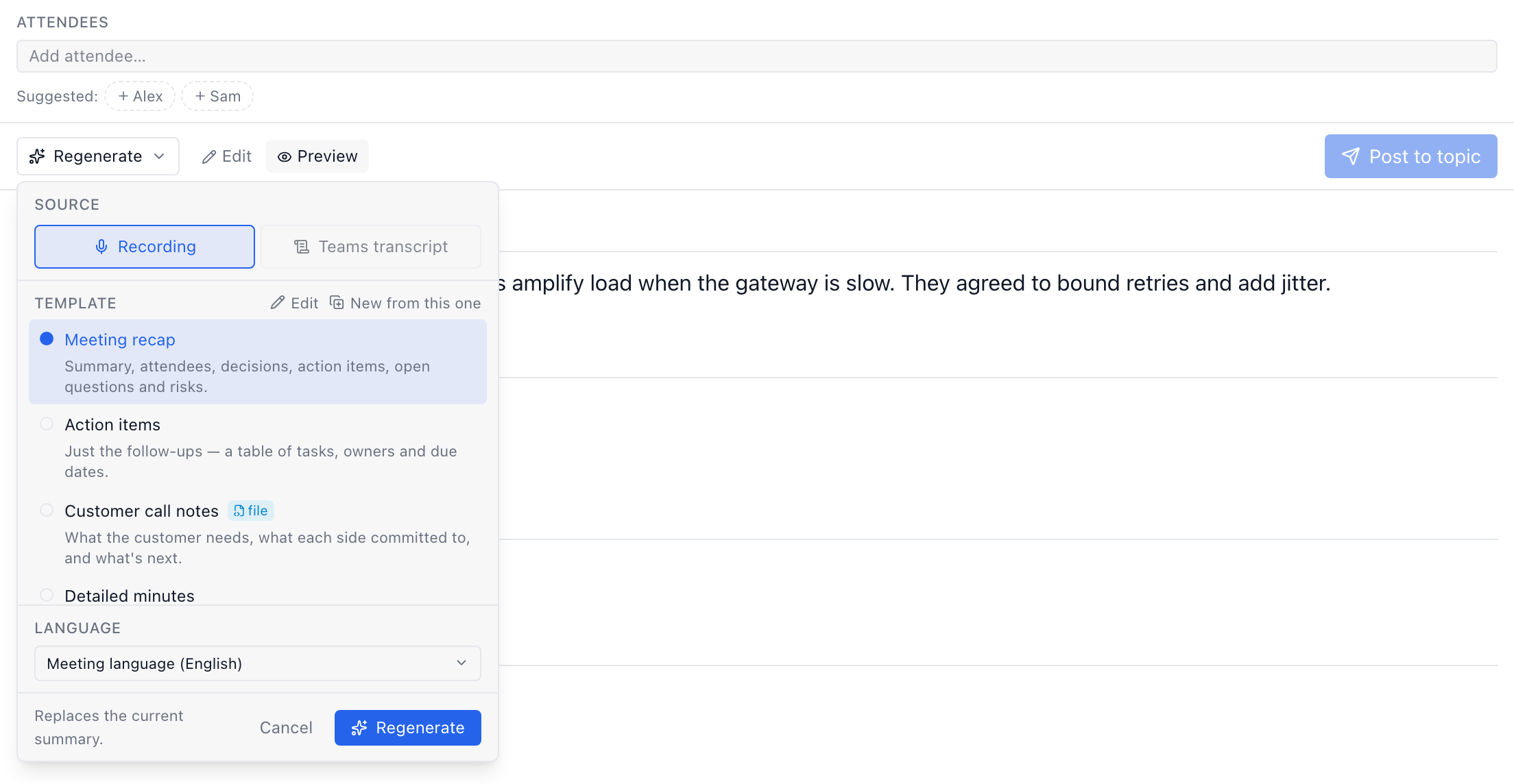
Source — the Recording (what Precursor transcribed) or the linked meeting's Teams transcript (see below). An option you can't use yet is greyed out, and hovering it says why. It defaults to the recording when there is one.
Template — the shape of the recap. Precursor ships with:
Template What you get Meeting recap (default) Summary, attendees, decisions, action items, open questions and risks. Executive brief A short, outcome-first brief for someone who wasn't in the room. Action items Just the follow-ups — a table of tasks, owners and due dates. Detailed minutes Topic-by-topic minutes of the discussion, in the order it happened. Follow-up email A ready-to-send recap email for the attendees. Language — Meeting language (the session's own, the default) or any other: record in French, send the recap in English.
The template and language are remembered: the next recap — including the draft written when a session ends, and the next session — starts from what you picked last. Regenerating replaces the current recap (the form says so).
Your own templates
Templates are definition files: *.summary.yaml files in the Definitions workspace (under summaries/), next to agent and workflow files. Next to the template list in the form:
- Edit opens the selected template's file in Files. For a built-in, it first saves a copy there under the same id — the copy replaces the built-in until you delete it.
- New from this one saves a copy under a new id, selects it and opens it: rename it, rewrite its
prompt(sections, tone, length), save. It's in the list the next time you open the form.
The editor completes and checks the file as you type. A template file with errors is left out of the list — the form says which file and why — and never breaks a recap: the built-in of that id stays available.
# summaries/customer-call.summary.yaml
kind: summary
id: customer-call
name: Customer call notes
description: What the customer needs, what each side committed to, and what's next.
prompt: |
  You are an account manager writing up a call with a customer. …
  ## Needs & pain points — bullet list, in the customer's own terms.
  ## Commitments — two bullet lists, **Us** and **Customer**, with owners.
  ## Next steps — bullet list.
Summarize from the Teams transcript (no local record)
If you'd rather not capture audio locally, link the Teams meeting from your agenda in the Context tab, then open Summary → Generate and pick the Teams transcript source. Precursor reads the meeting's published transcript through WorkIQ (Microsoft Graph) and summarizes it with your model — so you get Precursor's structured recap (decisions, action items, open questions, risks) instead of Teams' own summary.
The source can be picked only when the WorkIQ MCP server is enabled and a Teams meeting is linked. It's best-effort and fail-closed: the transcript is only available to the meeting organizer, requires the delegated OnlineMeetingTranscript.Read.All permission, and is published by Teams a few minutes after the meeting ends. When any of those isn't met, generating reports why and leaves your summary untouched.
When the meeting has several transcription sessions
Teams starts a new transcript every time transcription is stopped and restarted — that's why a long or interrupted meeting shows up as Partie 1, Partie 2, … in Teams. Precursor doesn't guess which one you meant: when more than one exists, it asks, listing each session with its start and end time (and duration) so you can tell them apart.
Selection is multiple, because the common case is a meeting that simply got cut in two: tick the sessions that belong to your meeting and they're stitched together in chronological order before being summarized as one transcript.
Precursor pre-ticks the sessions that fall inside the linked meeting's scheduled slot and tags them matches this meeting — a recurring meeting reuses the same join link for the whole series, so the list can also contain transcripts from other occurrences. When there's only one session, nothing is asked and the recap is generated straight away.
Settings
Configure the section under Settings → Live: enable/disable it, choose the fast model + reasoning effort used for live insights and Q&A (summaries use your default chat model for quality), and set the transcript retention window. Speech credentials live under Settings → Speech-to-text.
Transcript retention
To keep the database small, a session's raw transcript is automatically deleted a configurable number of days after the session ends — 7 days by default. Set Delete transcript after (days) to 0 under Settings → Live to keep transcripts forever.
Only the transcript is removed: the session and its insights, notes and summary are preserved, so a cleaned-up session still shows its recap. Only ended sessions are eligible — an active or paused recording is never touched. The window maps to the live_transcript_retention_days setting (see the configuration reference).
Need the space back before the next daily sweep? The storage cleanup cockpit runs this sweep on demand and compacts the database afterwards.
Privacy
Audio is streamed directly from the browser to Azure Speech using a short-lived token minted by the backend — the subscription key never reaches the browser, and raw audio is never persisted. Only the finalized transcript (and derived insights) are stored.