
Agents
Agents mode hands a long-running task to an autonomous Copilot SDK agent attached to a topic or chat, then lets it run in the background while you monitor the whole fleet from a control-tower dashboard. Without a saved preference, Agents mode follows runtime availability; downloading a missing CLI is always opt-in.
Sidebar and overview
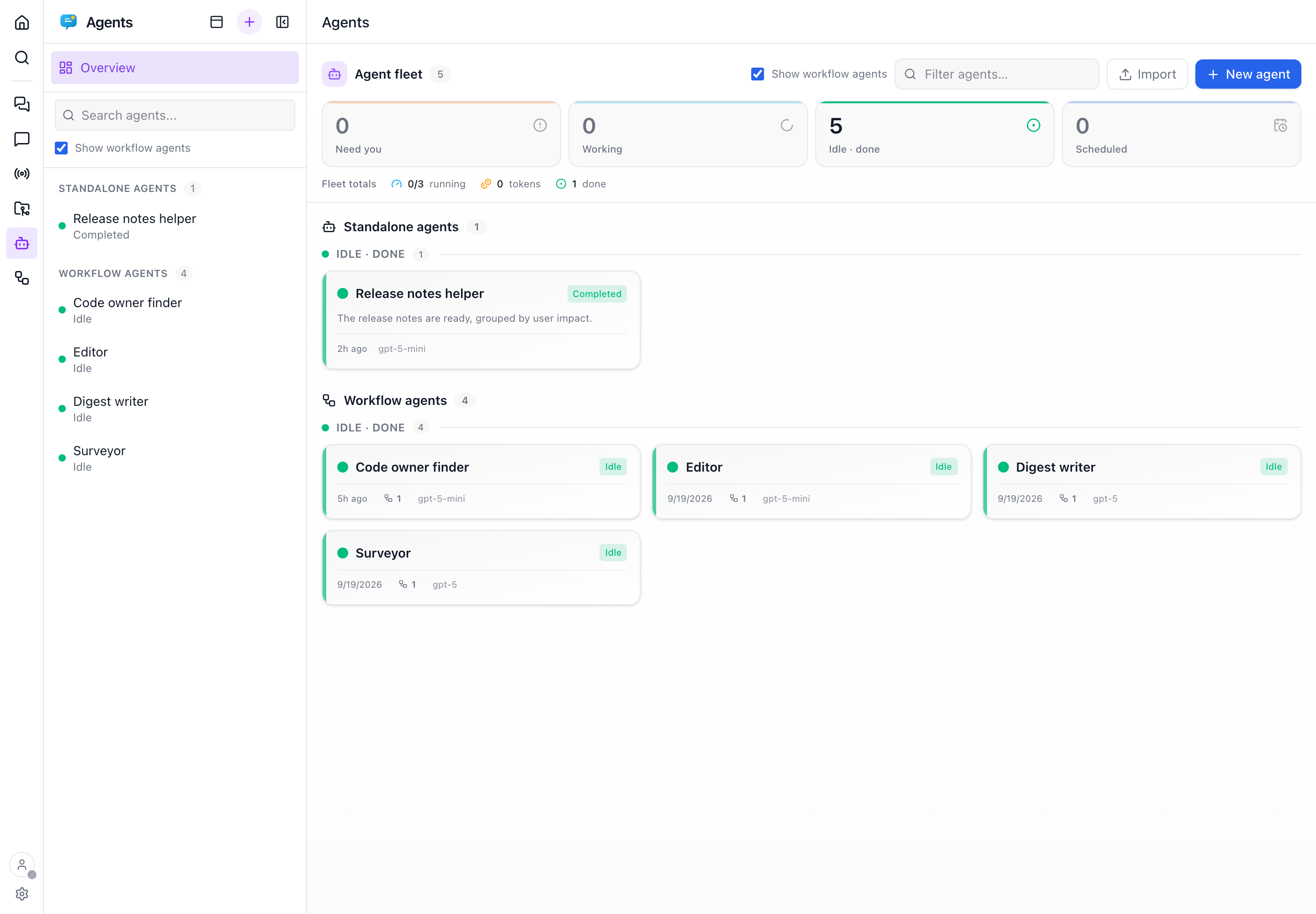
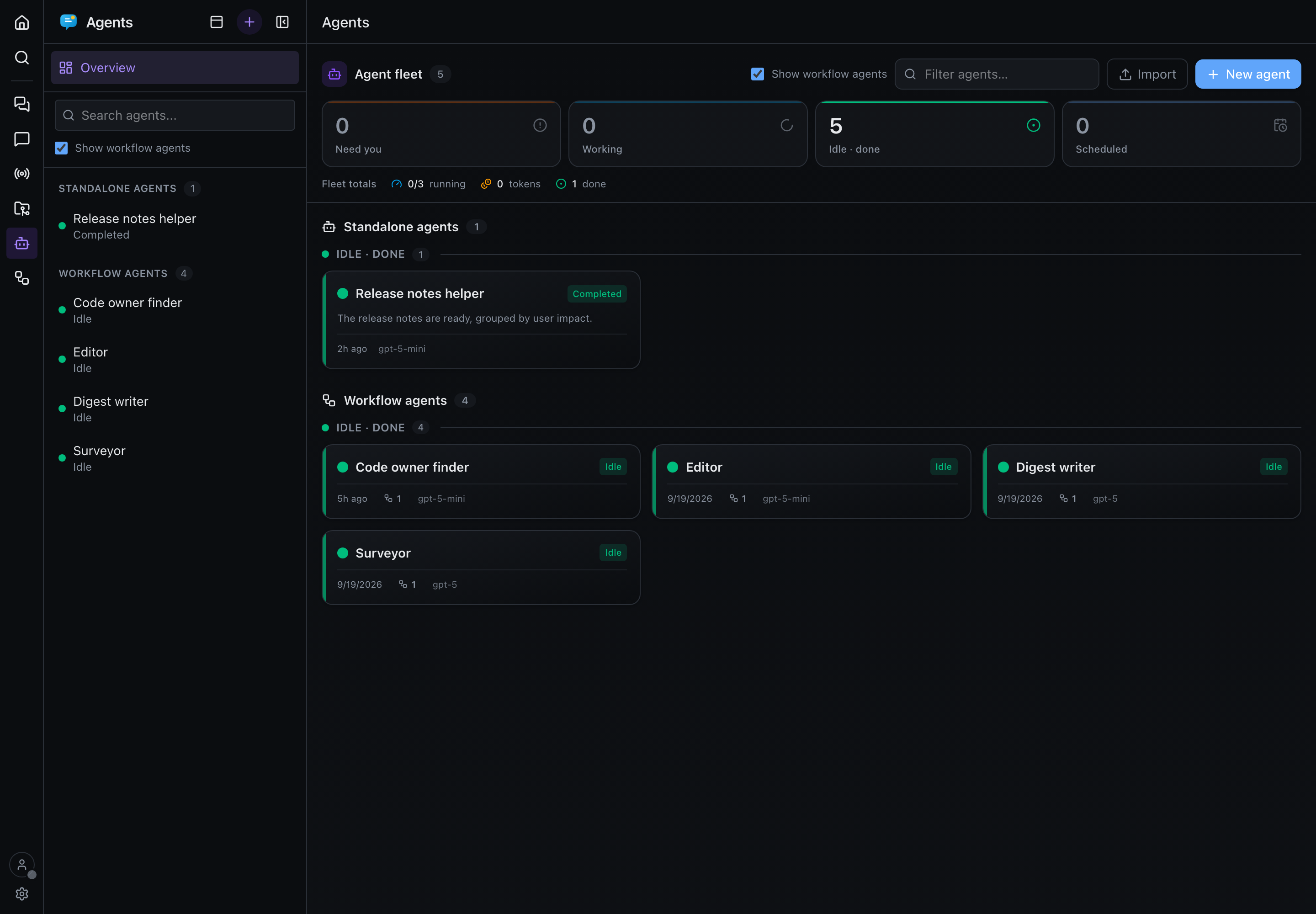
Clicking Agents in the section rail or tabs always opens Overview, even when you previously left an agent open. A searchable, urgency-sorted agent list stays beside the main pane, with each agent's status and unread count. Select a row or a dashboard card to open the same agent; Overview returns to the cards.
Both views separate Standalone agents from Workflow agents. An agent belongs to the workflow section whenever at least one non-archived workflow references it, even when it is idle or was last run manually. Shared agents appear once, regardless of how many workflows use them. Private inline steps stay on their workflow's board rather than appearing in the agent roster.
Untick Show workflow agents in either view to see only standalone agents. The toggle stays in sync between the sidebar and overview while you navigate, including in the mobile drawer. It starts enabled on a fresh page load. Hiding a group does not stop its agents, close an open agent, or block direct links; it only narrows the list and overview.
The sidebar resizes and collapses like Topics, Chats, Live and Files. In rail navigation, collapsing the list does not move the section icons or account controls. On a phone, the list lives in the navigation drawer and selecting an agent or its overview closes the drawer.
New agent explicitly opens the task composer. An empty fleet still has an overview with a creation action. Direct agent links, command-palette results, and browser Back/Forward continue to select the requested agent.
Start here
| Guide | What it covers |
|---|---|
| Running an agent | Following a run, the approval policy, editing safely, and how a background agent reaches you. |
| Orchestrating a fleet | Definitions vs runs, parking, budgets, retries, blueprints, webhooks and schedules. |
| Artifacts & state | The shared blackboard agents publish to, and the private scratchpad they remember with. |
| Autonomous missions | Turning a task into a standing objective, and the directive protocol behind it. |
Enabling agents
Agents stays visible in the sidebar, command palette, and Home launcher, even when its runtime is missing or you have turned it off. Open Agents to install the native Copilot CLI directly, or use Settings → Agents. The Home launcher's New agent surface offers the same setup. The Copilot SDK is a normal dependency, so there is no package extra to install.
Until the runtime resolves, setup offers Install the Copilot CLI instead of an unusable task form. Both entry points share the same download confirmation, progress, and error details. You can leave while the download runs and return to its progress. A failed status or settings refresh has an explicit retry.
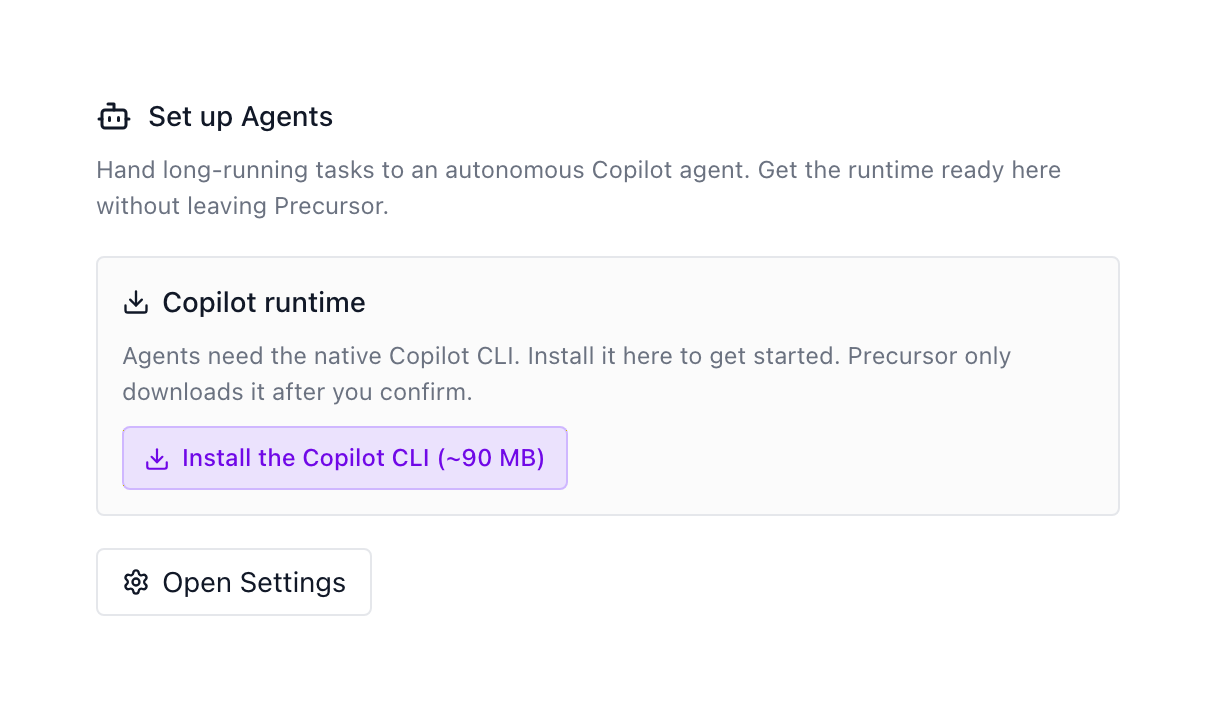
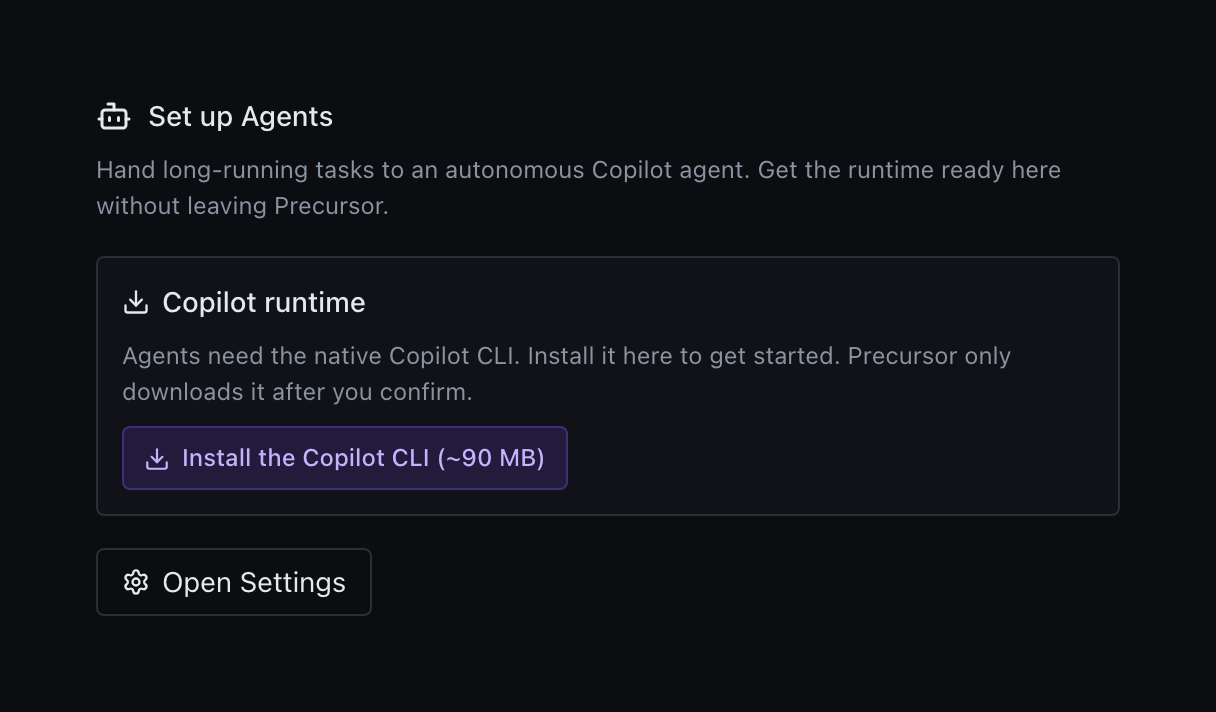
Installing does not change your saved enable/disable preference. With no saved preference, Agents comes on when the CLI resolves. If you explicitly turned it off, it stays off after installation; use Settings → Agents to enable it. The installer remains available while the CLI is missing, but an installed runtime deliberately left off produces no startup warning.
Enable Agents mode is unavailable until a runtime resolves, because the backend rejects agent requests without one — a checked box over a missing CLI would promise something Precursor cannot deliver. An already-saved on is never revoked by an outage: it stays checked, stays switchable back off, and starts working again as soon as the runtime returns.
If Agents is enabled but the installed runtime failed to start, setup offers restart guidance rather than another download. Restarting requires a separate confirmation; unsupervised instances show the manual command instead. Existing agent timelines remain accessible during recovery.
Runtime-dependent settings and blueprints stay hidden while Agents is off.
The one thing that can outlive the switch is timeline retention. Its sweep runs on the scheduler, not on Agents mode, so it keeps pruning archived events after you turn the feature off. Those levers therefore stay reachable whenever archived events exist — hiding them would leave no way to stop a background job erasing a history you may want to keep. On an install that has never run an agent there is nothing to protect, and the section goes away with the rest.
Nothing is destroyed either way — your model, approval policy, system message, watchdog and blueprints are hidden, not cleared, and come back exactly as you left them. Timeline retention stays visible throughout, because archived events outlive the toggle and the sweep keeps running either way.
Agents mode then follows the runtime: with no stored preference it comes on as soon as a CLI resolves, and the switch is there to turn it off again without uninstalling anything.
~90 MB native runtime
The SDK wheel is ~0.5 MB, but it drives a native Copilot CLI (~90 MB, ~145 MB on disk). That payload is why provisioning is an explicit click rather than something that happens on first run: Precursor's own probe is read-only and never downloads — it runs on every Settings render, and pulling 90 MB to draw a toggle would be indefensible.
A system-wide copilot (Homebrew, npm, the official installer) is a perfectly good runtime and is adopted as-is — see below for the resolution order.
Pointing at a specific CLI
Precursor resolves the runtime read-only, so rendering Settings never pulls a binary. It takes the first of:
COPILOT_CLI_PATH, if it points at an existing file.- The SDK's own download cache (
~/Library/Caches/github-copilot-sdkon macOS,~/.cache/github-copilot-sdkon Linux). - A
copilotexecutable onPATH— a Homebrew, npm or installer-provisioned CLI counts.
Whatever it finds is handed to the SDK, so the runtime always drives the binary Settings → Agents reports. If none resolve, install the Copilot CLI or set COPILOT_CLI_PATH.
The agent dashboard
Agents are meant to run in the background — you kick one off and let it work. So opening Agents mode doesn't drop you into a single run; it lands on a control-tower dashboard for the whole fleet: KPI tiles counting each lane (Need you, Working, Idle / done, Scheduled) above monitor cards grouped into the same urgency swimlanes.
Each membership section has its own urgency lanes. The KPI counts and inbox respect Show workflow agents; the separately labelled Fleet totals (tokens, concurrency and completed/failed totals) remain fleet-wide.
Each KPI tile doubles as a filter — click one to narrow the board to that lane, click it again to clear — and a search box in the header filters by agent name as you type. The two stack, so you can look for a name within "Needs you". Both also stack with the workflow-agent toggle; a chip above the lanes names the active filters, and Clear resets all three.
Cards are urgency-sorted, not chronological: an agent waiting on you — a parked approval or a raised Needs input question — floats to the top, then interrupted/failed runs, then live work, then idle. The same ordering is used by the sidebar and dashboard within each membership group. The command palette continues to search the whole fleet, ordered by urgency.
While an agent is working, its card shows the current tool it is running (and a ×N parallel count when several run at once) plus the agent's own live narration — the first plain-language line of the message it is streaming. While the model is thinking, the card shows a pulsing Thinking… line with the step it is on instead. A backgrounded agent therefore reads as "what it is doing now" in its own words.
Click any card to drop into that agent's timeline; hit New agent to start a fresh task. Inside a single agent, ← All agents returns you to the dashboard, and per-agent actions (rename, run, archive, stop, delete) live in that header.
Chaining agents into a pipeline
Sequencing one agent after another — research → draft → review — is owned by Workflows, a reusable coordinator that runs a series of agents in order and passes each step's output to the next. Individual agents stay independent; a workflow supplies the chaining.
Sharing an agent
An agent's definition — prompt, model, persona, budgets and cadence — can be exported to a YAML file from its settings drawer and imported into another install. What travels is the definition only: no run history, and no webhook tokens. See import & export.