
Running an agent
What a single run looks like while it happens — what you can watch, what it will stop to ask you, and how it reaches you when you aren't looking.
Following a run
Give an agent a task prompt and it works autonomously, streaming its steps into a timeline you can watch: tool calls visualised inline, permission prompts surfaced for actions needing approval, and per-session token accounting.
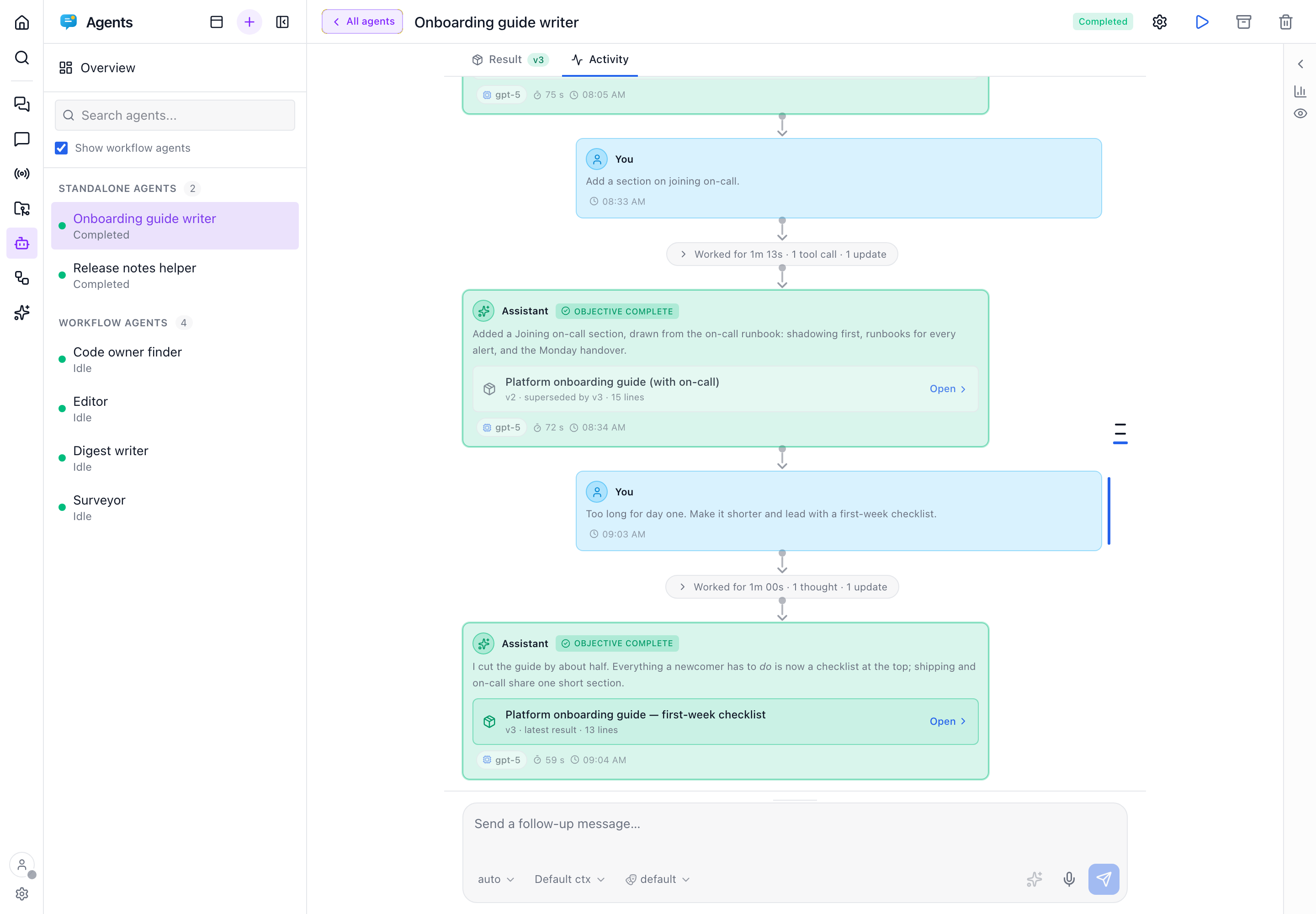
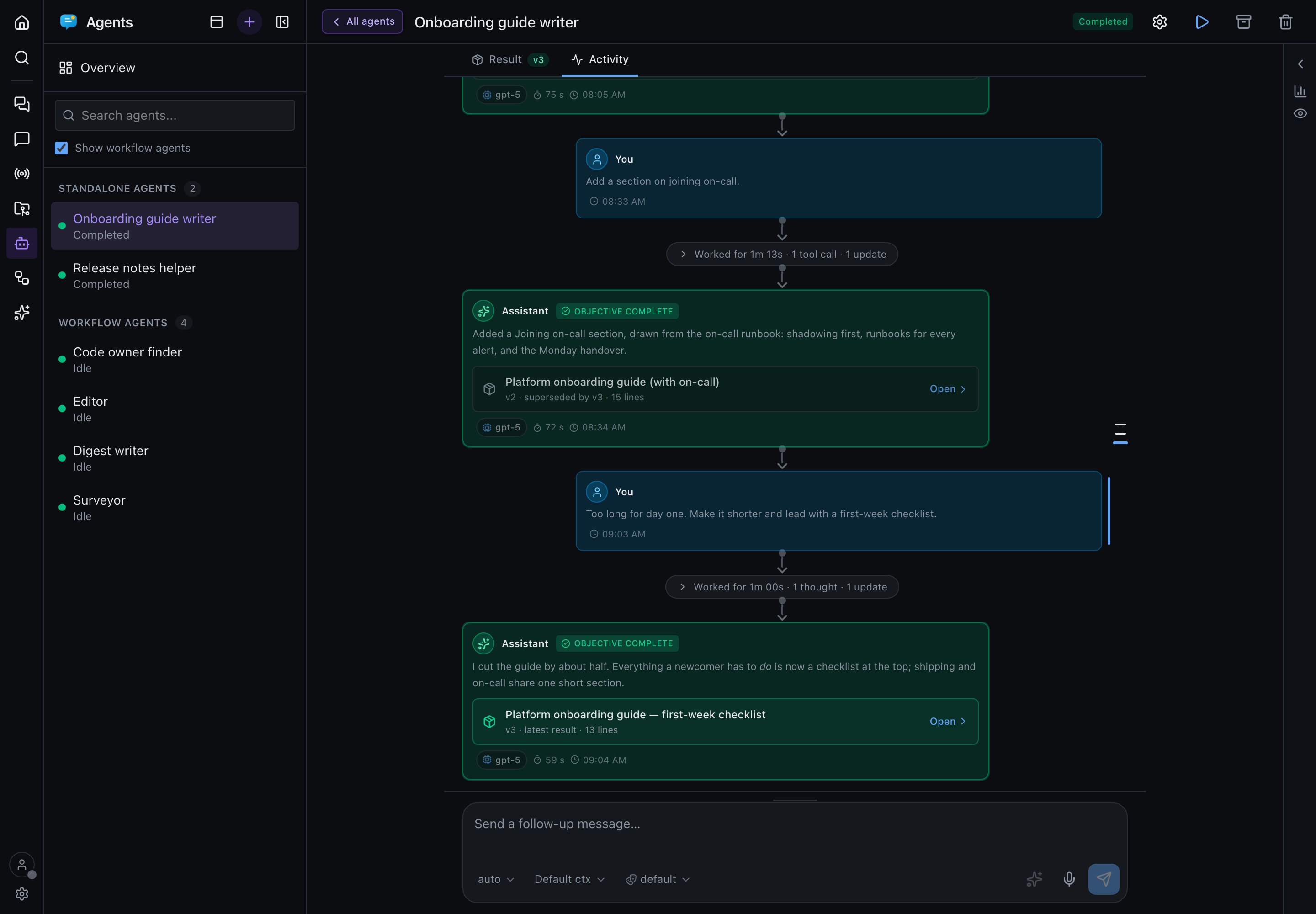
The timeline reads as exchanges: your prompt, the work it set off, and the answer it concluded with. Once a turn has its answer, the steps in between fold into one line (Worked for 3m 13s · 19 tool calls · 7 updates). Click it to see every step. The turn still in flight, and any turn waiting on an approval, stay open. The goal loop's "keep going" nudge between steps of an autonomous mission shows as a quiet Continued autonomously marker, not as a message from you. To see every step all the time, switch off Fold finished turns under Show in the insights sidebar.
Watching an agent think
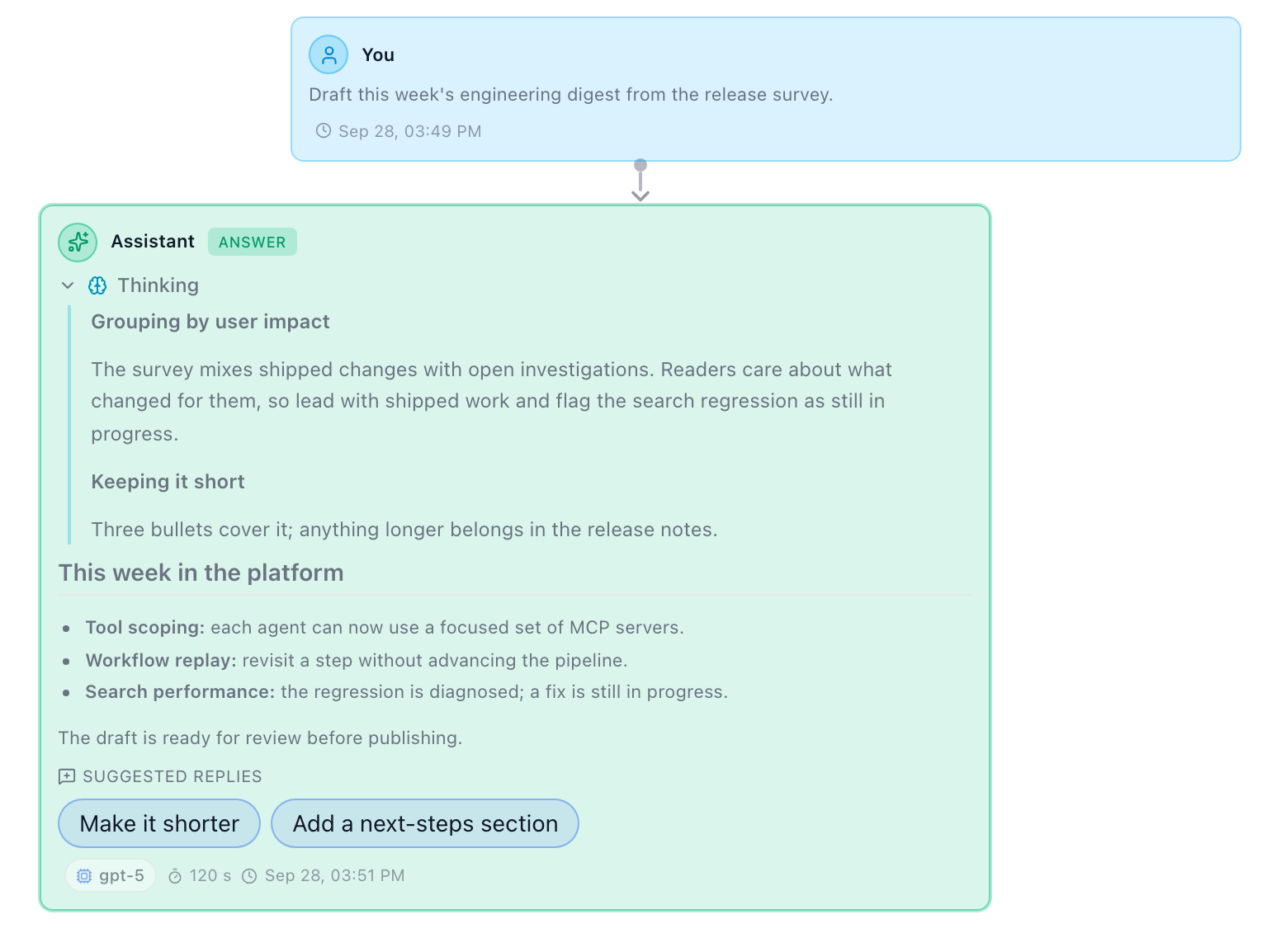
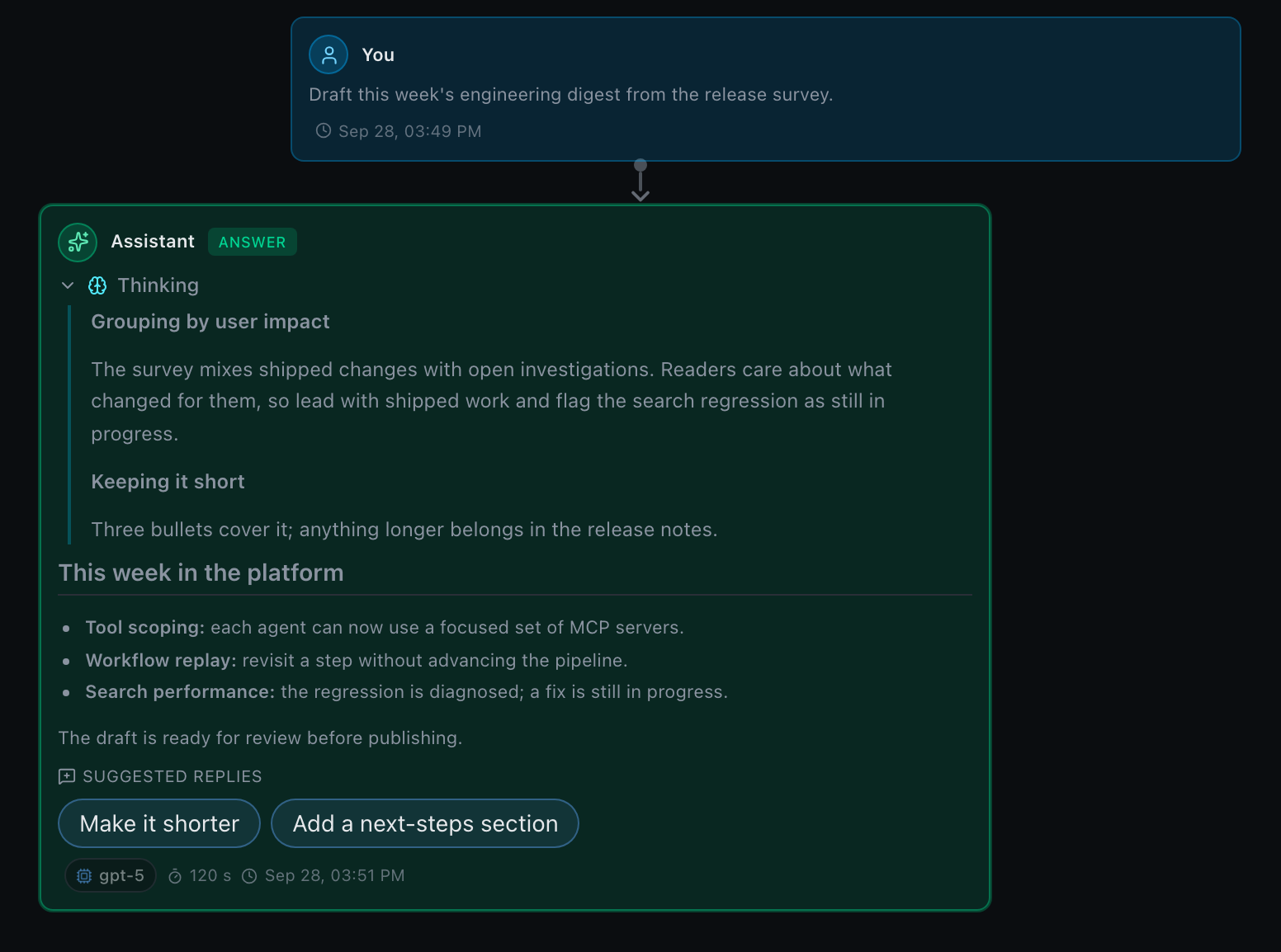
Agents show the model's thinking the way chats and topics do. While the model thinks, a pulsing Thinking… row at the end of the timeline previews the step it is on; click it to read the thinking in full as it streams. Once the round is done, its thinking stays with the message it led to, as a collapsed Thinking area at the top of that message. A round that went straight to a tool call keeps its own collapsed Thinking row just before the tool, so you can see why the agent reached for it. Stopping a turn keeps whatever thinking arrived before it. Thinking under Show in the insights sidebar hides all of it.
What appears depends on the model and on the reasoning effort picked under the composer or in Settings → Agents:
- Claude thinks only with an effort picked, and streams its thinking live.
- Gemini sends each round's thinking with its message, so it shows up once the round is done rather than live.
- GPT models keep their reasoning encrypted in the agents runtime, so they show no Thinking area.
A running agent's dashboard card and a workflow's active step show the same pulsing Thinking… line while the model thinks.
An agent that publishes a result gets a Result tab next to this timeline, with each refinement kept as a version. See Reading an agent's result.
Use the Run agent play button in the header to start a parked agent or run its saved task again without opening settings or typing a follow-up. It starts a new execution with the saved definition; it does not send the composer draft. The button shows a spinner while the request is in flight, and any launch error appears below the header.
Run is disabled while the agent is pending, running, awaiting approval, or interrupted, and whenever Agents mode or the Copilot runtime is unavailable. Use Stop for an active run, or the timeline's Resume action to continue an interrupted turn rather than replace it.
Keeping a long run within the window
The runtime compacts a long conversation on its own when the context window runs low. /compact [focus] in the composer, or Compact context under Usage in the insights sidebar, does it now. Each compaction shows in the timeline as a context compacted marker with the tokens freed. The Usage section also breaks the window down into system prompt, system tools and messages, with the free space and the compaction buffer. See context compression.
To drop only the last few turns instead of the whole context, rewind from the timeline rail or a prompt's toolbar. Unlike /clear, the turns before the cut stay in the agent's context.
When a model disappears or rejects its configuration
Optional model alternatives under Settings -> Presets give agents and workflow steps ordered presets. Add entries tagged Copilot agents to a category: entries from other providers do not apply to agent runs.
The agent prompt's Agent model dropdown also offers Presets, listing your categories. Select a category and the engine resolves its ordered models, reasoning efforts and context tiers for unpinned runs. The category remains selected even when a model is substituted. Explicit agent and workflow model pins win over the default category. Only Copilot SDK categories appear here; chat presets use the provider scope instead.
A missing model or rejected effort/context can switch to a same-category preset with its own effort and context tier, keeping the SDK conversation and saved model pin. Recovery is shown in the timeline. It stops after the configured alternatives, never changes category, and never replays a turn once output or tool/permission activity begins. Credentials/quota/network failures still fail normally. Without configured presets, the existing SDK auto fallback for retired model ids remains.
Approval policy (per agent)
Every agent action is gated by an approval policy. There's a global default in Settings → Agents (manual asks before every action, balanced auto-approves read-only tools, autonomous approves everything), and each agent either inherits it — moving with the global whenever you change it — or overrides it, letting you run a trusted mission more freely without touching the fleet-wide default.
The policy is read at the start of each turn, so switching it takes effect next turn with no session rebuild, unlike editing the objective or role.
Picking which tool servers an agent gets (per agent)
An agent attaches every MCP server you have enabled, and that is rarely what a focused agent needs. A modest install registers a few hundred tools between them and re-sends their schemas on every turn, so the cost is continuous rather than one-off — and an agent handed a browser, a CRM and a shell will reach for them, whatever its instructions say.
So the settings drawer has an MCP servers row. It lists every server enabled in Settings → MCP with its tool count, so the cost is visible where the choice is made.
| Selection | The agent gets |
|---|---|
| All (default) | Every enabled server, including ones you add later. |
| One or more servers | Only those. |
| Nothing selected | No tool servers at all — identical to Tools: off. |
This is a real allowlist, not a request: the servers you didn't pick are never attached to the session, so the agent cannot call them and their schemas cost nothing. Asking a model in the prompt not to use a tool is not equivalent — it reliably reaches for one anyway.
Note what stays dynamic. The list is not a fixed catalogue: it's whatever is registered and enabled right now, so a server you install tomorrow is offered tomorrow, and an unscoped agent picks it up on its next turn with nothing to edit. Names are never validated against the local registry either — a scope that mentions a server this machine doesn't have keeps it (shown struck through, red if nothing by that name is installed, amber if it's installed but switched off) rather than silently dropping it, so an agent survives the trip between machines.
Changing the scope rebuilds the session on the next run, exactly like the capability toggles — the server set is wired in at build time.
A shared agent driven by a workflow step keeps that step's own scope for the duration of the step: the step's choice is snapshotted onto its run and wins, including its "all servers" default, so narrowing an agent here never silently disarms a pipeline that depends on it.
Editing an agent (save vs. run)
The settings drawer separates persisting changes from acting on them. Save only writes your edits — changing the objective or role primes the new instructions for the next run, but never launches a turn. Save & run persists the same edits and starts the objective now, clearing the previous run's artifacts first; it's disabled while the agent is active.
Editing is safe while a run is in flight: a run snapshots the model, role, approval policy and capability toggles it started with, so changing the definition mid-flight primes the next run rather than moving the ground under the current one.
Session lifetime and runtime recovery
Every agent drives the same Copilot CLI process, and each run holds a live session in it. Once a run has been at rest for 15 minutes (idle, completed, failed or blocked, not waiting on an approval), Precursor disconnects its session to free the memory. Nothing is lost: the conversation stays on disk, and the next message, Resume or answer reconnects to it. Approvals you granted for the session are reset along with it, just as they are when a session is rebuilt.
If the CLI process itself dies, for example when it runs out of memory, the next agent request or the watchdog's next check (at most a minute later) restarts it. You don't need to restart Precursor. A turn that was in flight when the CLI died is marked interrupted by the watchdog. Use Resume to retry it.
Unread badges & notifications
Agent sessions track unread activity just like topics and chats. When a background or scheduled agent replies while you aren't looking, its card is highlighted with an unread count and — when notifications are enabled and the window is unfocused — a browser notification fires. Opening the session clears the badge.
The "agent needs you" signal
Background agents pause when they hit an action needing approval, and the whole point of running them in the background is that you're not watching. So that block is surfaced out of band, the moment it happens:
- A browser notification fires regardless of focus the instant an agent transitions to Needs approval, deep-linking straight to it.
- The browser tab title grows a 🔔 bell and a
(n)count whenever any agent is waiting on you. - The ⌘K command palette lists the agents that need attention first.
Everything waiting on you is also collected into the unified inbox across the top of the dashboard.