
Quick start
This walkthrough gets you from a fresh install to your first conversation in a couple of minutes. If you haven't installed Precursor yet, that's one command.
1. Open the app
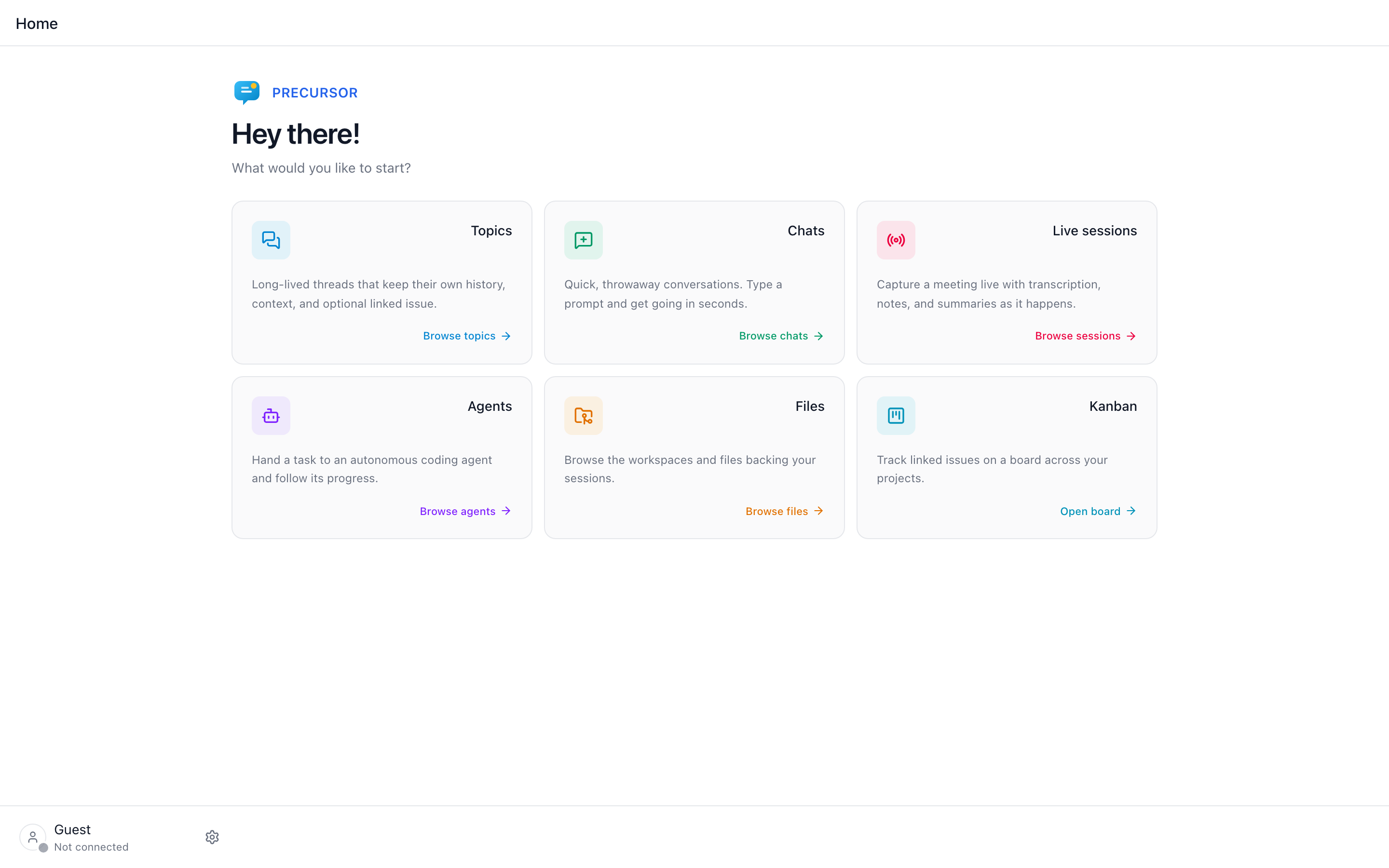
Precursor is already running — the installer started it and registered it to start at login. Open the URL it printed (http://localhost:8000 by default); precursor service status reports it again at any time.
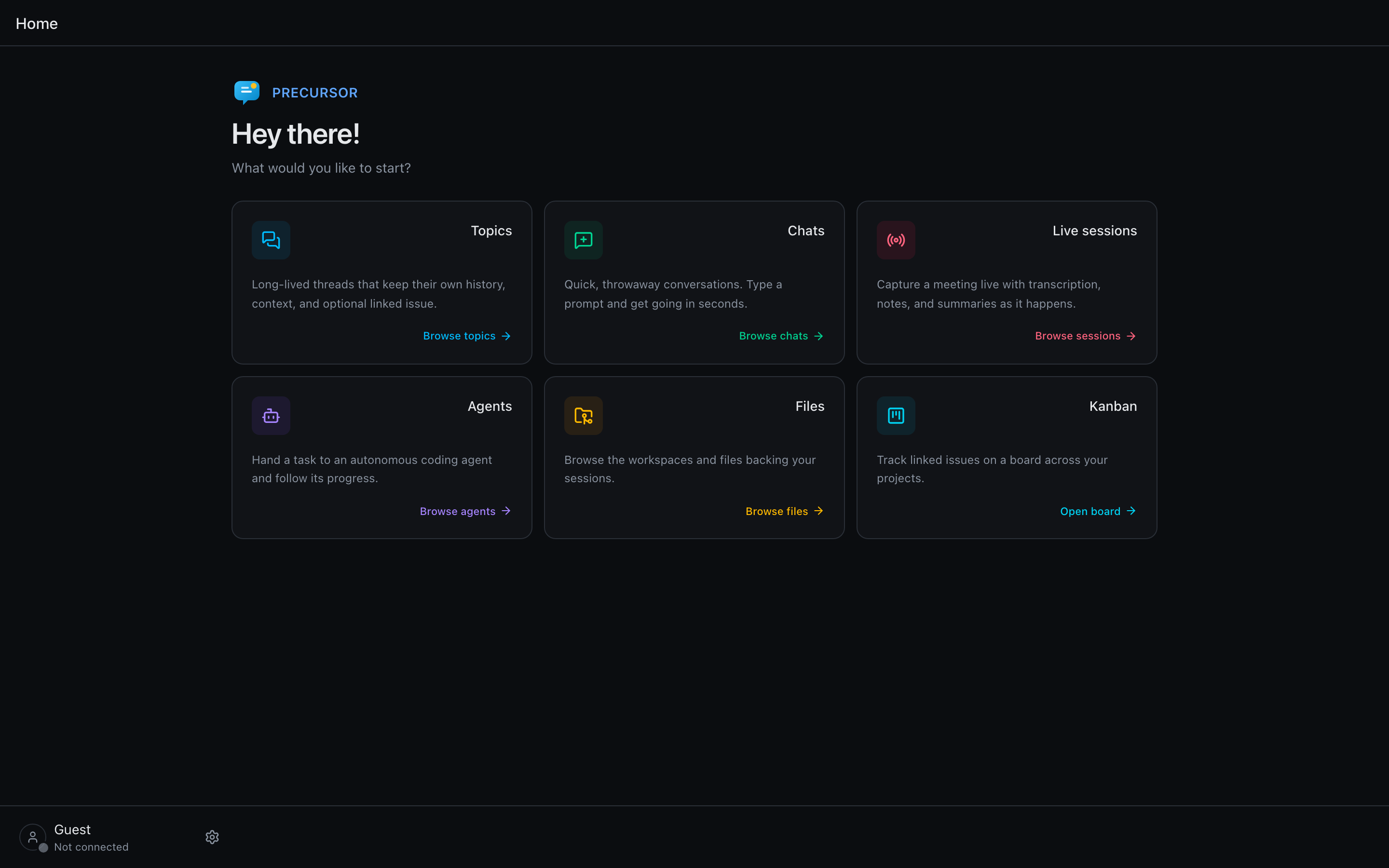
You'll land on the home launcher: a greeting and a grid of section cards (Topics, Chats, Live, Agents, Workflows, Files, and — when configured — Kanban).
2. Create a topic
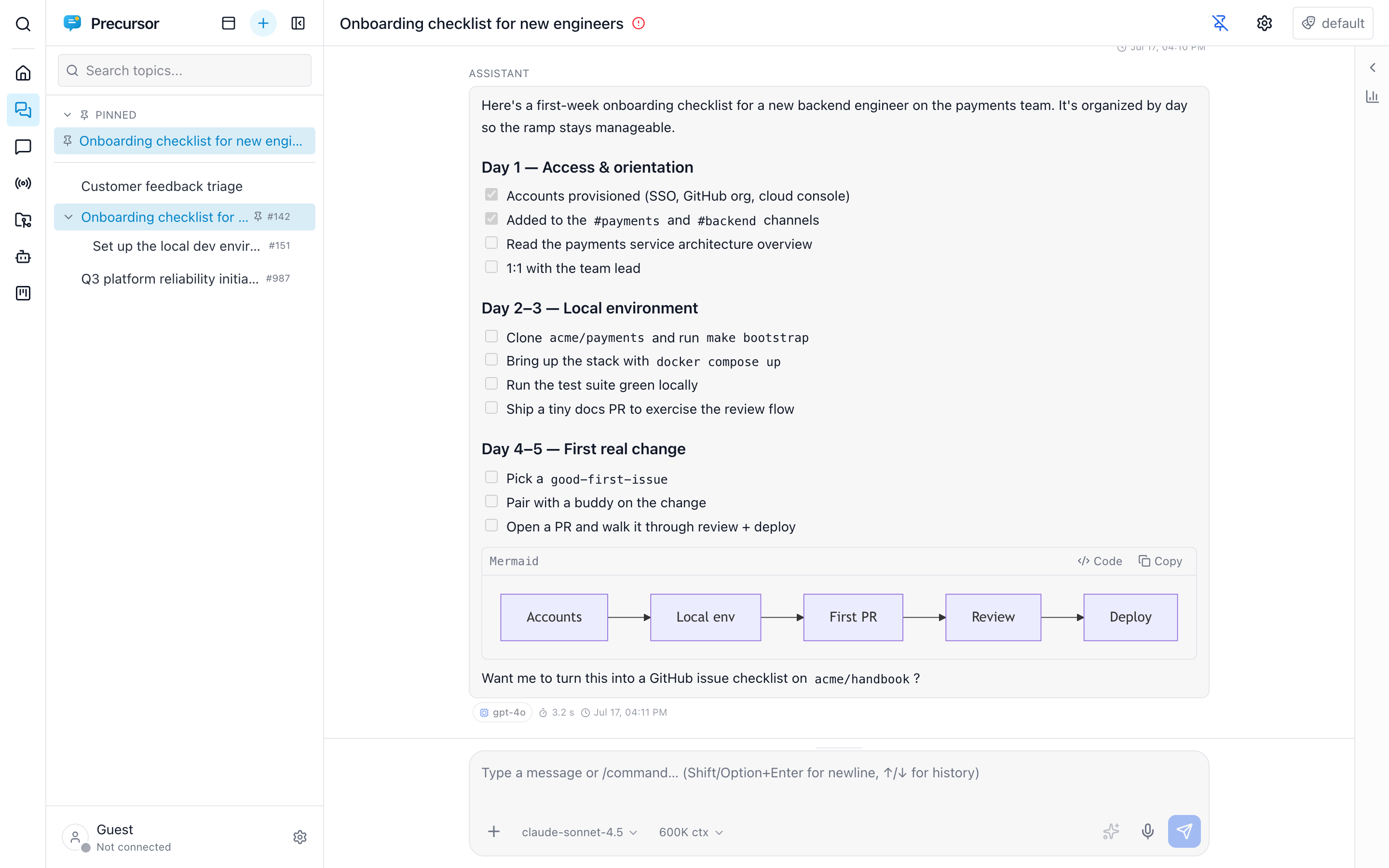
Click the Topics card, then New topic. Give it a name that describes the thread of work — for example "Onboarding checklist for new hires".
Optionally link a GitHub issue: paste an issue URL or number, or create a new issue from the topic. Once linked, the issue's body, comments, and labels become live context on every turn — newer comments are preferred over older ones, so the assistant always reasons over the current state.
3. Chat
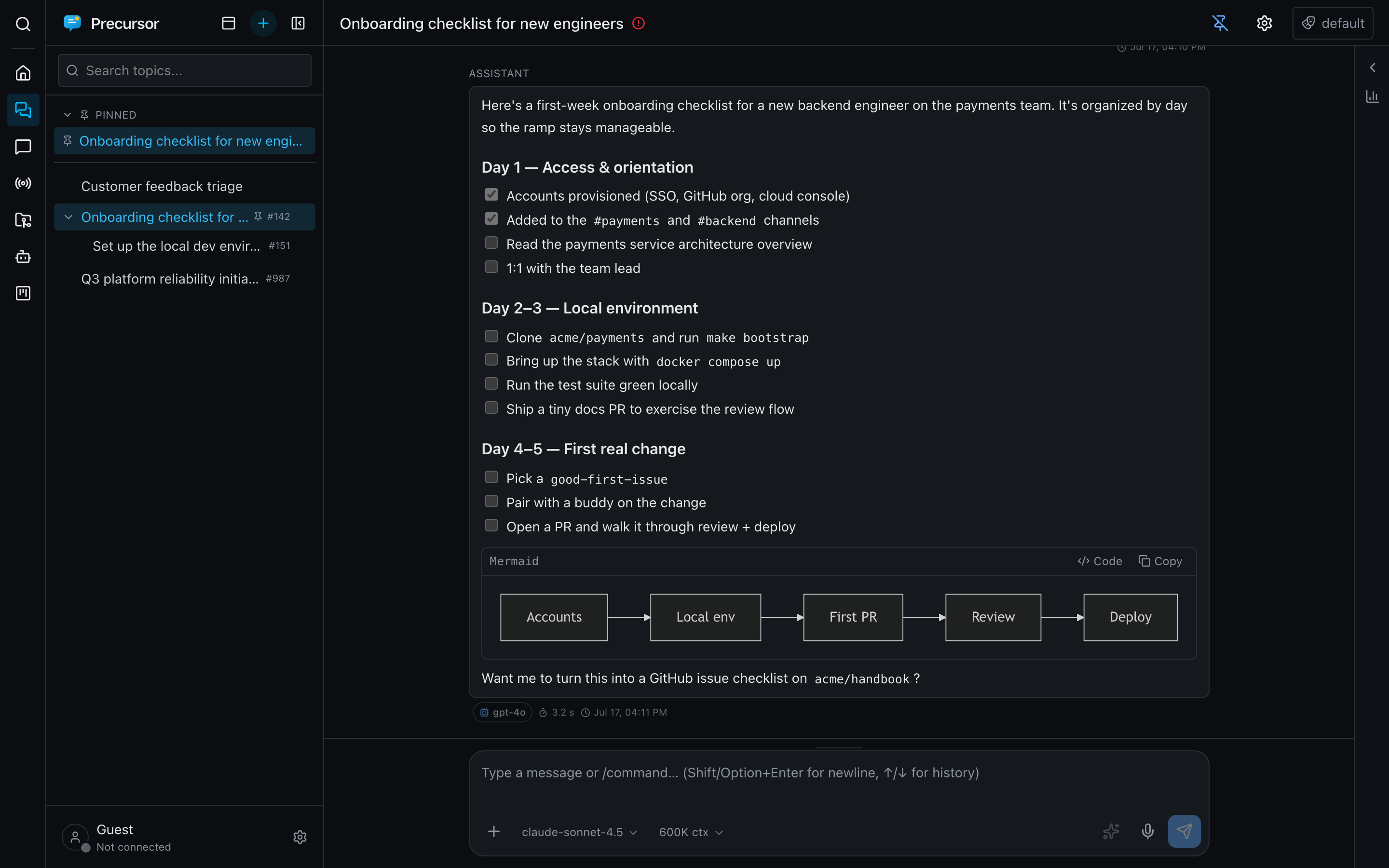
Type a prompt in the composer and send it. The reply streams in with live markdown rendering — including fenced code blocks and mermaid diagrams. Tool calls are shown inline so you can see what the assistant did.
Useful things to try in the composer:
/— open the slash-command picker (skills, memory commands, GitHub actions,/notes, and more).- Attach a file — drop in an image (used as vision input) or a PDF / DOCX / PPTX (text-extracted). See attachments.
- ⌘K / Ctrl-K — open the command palette to jump between sections and conversations, search everything by relevance, or press Tab to ask a question and get a cited answer.
- ⌘⇧K / Ctrl+Shift+K: open the IQ section with the selected text as the question.
- C focuses the composer, N starts a new item in the current section, Esc stops a streaming reply, and ? lists every keyboard shortcut.
That's the core loop. From here, each of Precursor's other sections has its own short quick start.
Start with the other sections
Topics and chats work out of the box. The rest each need a first step of their own — and in three cases a prerequisite:
| Section | Quick start | Needs first |
|---|---|---|
| 🤖 Agents | Run a task in the background | the Copilot CLI (one click in Settings) |
| 🎙️ Live sessions | Record and summarise a meeting | Azure Speech credentials |
| 🔗 Workflows | Chain agents into a pipeline | agents enabled |
| 📋 Kanban | Put your issues on a board | a global repo + read:project |
| 🗂️ Files | Let the assistant edit files | — |
Where to go next
- Configuration — connect GitHub and a real model.
- Topics — nest them into a tree, put one on a schedule, or set a
/reminder. - Chats — for when you just need a fast answer without the ceremony of a topic.
- Feature guides — the full detail behind every section.